
How to Use the Trade Analyzer
Table of Contents
ToggleGetting Started
thetradeanalyzer is built for fantasy managers who want real trade values based on their league’s actual rules, not generic rankings. The app covers NHL, NFL, and MLB in a single interface. You can use it free with no account, upgrade to a personal subscription for saved leagues and trade history, or buy a Commissioner license that gives every manager in your league access.
This guide walks through every part of the app, starting with what a regular Pro or Pro Plus user sees, then moving into the Commissioner-specific workflow.
To begin, head to app.thetradeanalyzer.com and sign in. If you do not have an account yet, you can start using the analyzer immediately as a free user. No signup required to evaluate trades.
Choosing Your Sport
The top of the app has three tabs: NHL, NFL, and MLB. Pick the sport you want to evaluate a trade in. Each sport has its own valuation engine tuned to how that sport actually scores. NHL pulls live data from the NHL’s official API. MLB pulls live data from MLB’s official stats API. NFL uses a Value Above Replacement model tuned to your scoring format.

Switching sports does not lose your work. Each sport has its own saved leagues, settings, and trade history.
Configuring Your League Settings
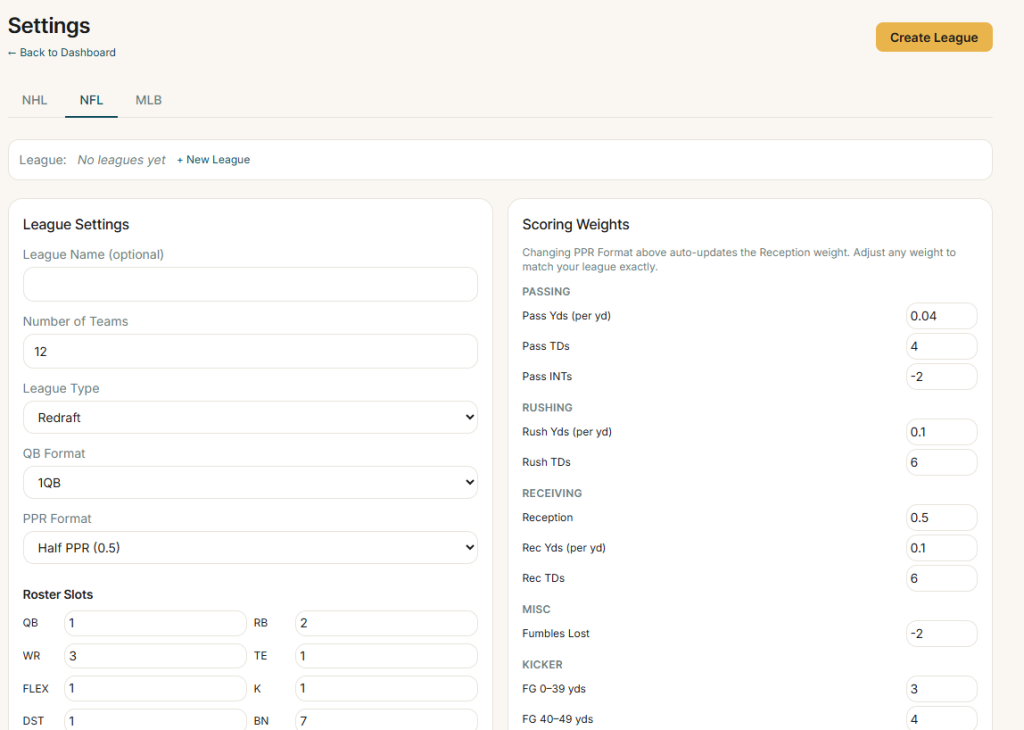
This is the most important step. The accuracy of every trade you evaluate depends on getting your league settings right. Click into the settings panel for your chosen sport.
Across all three sports, there is a keeper toggle. Turn this on if you are in a keeper or dynasty league. The app applies a smooth value multiplier based on player rank, reflecting the surplus value of keeping a player below market rate. Once your league is configured, every trade you evaluate from that point forward respects those rules.
For NHL
You will choose between Points mode or Categories mode. Points mode lets you weight each statistical category (goals, assists, plus-minus, PIM, power play points, shots, hits, blocks, faceoffs). Categories mode uses a z-score model that compares each player against the league pool. You will also set your roster (C, LW, RW, D, G, BN, IR, IR+), and decide between This Year or Last Year data, and Total or Per-Game Projected.

For NFL
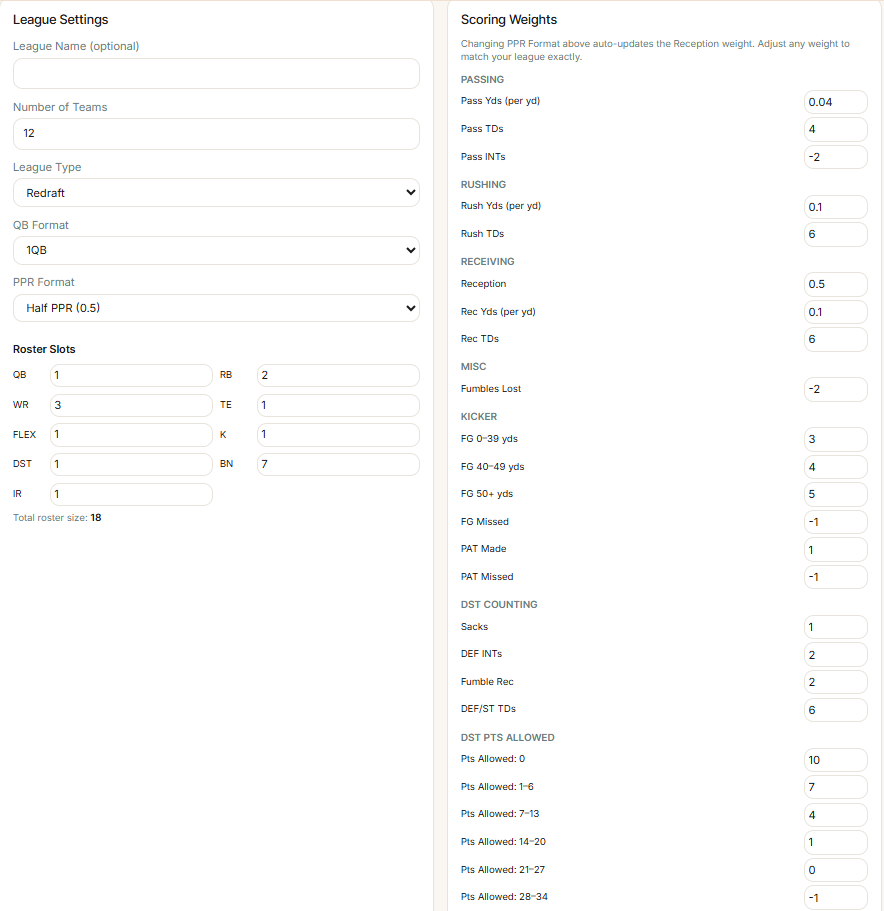
You will choose your PPR setting (Standard, Half, Full) and QB format (1QB or 2QB/Superflex). These determine replacement levels and reception value. You will also set your roster spots, QB, RB, WR, TE, Flex, K, DST, BN, IR.
For MLB
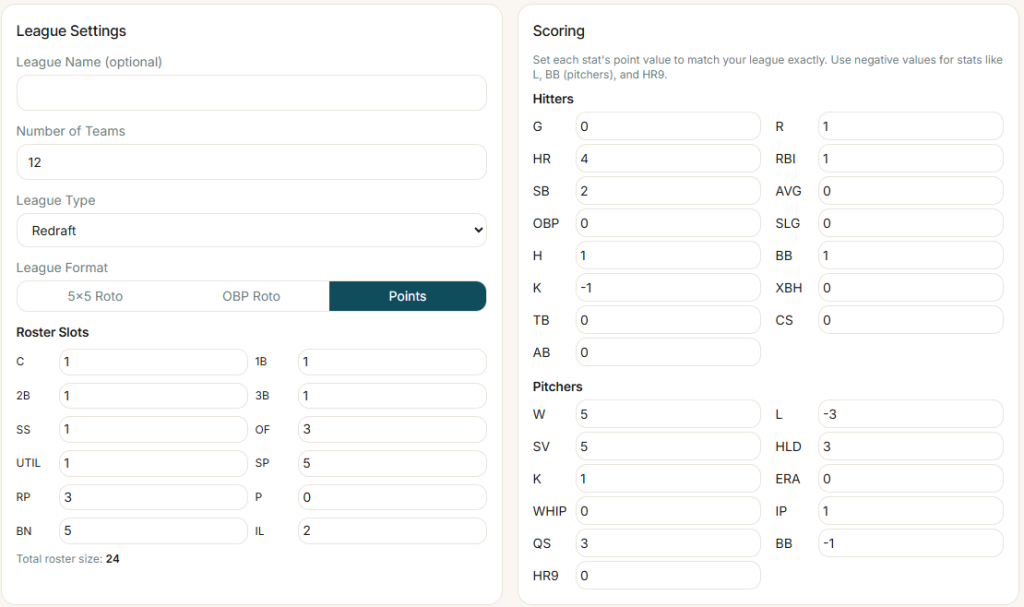
You will choose your format: 5×5 Rotisserie, OBP Rotisserie, or Points. This single choice changes valuations more dramatically than any other setting. You will also set your roster slots (how many C, 1B, 2B, SS, 3B, OF, UTIL, SP, RP), keeper status, and whether you want injury discounts applied.
Saving Leagues & Trade History (Pro and Pro Plus)
If you have a Pro or Pro Plus subscription, your league settings save automatically to your account. No need to reconfigure every time you log in.
Pro users can save one league per sport. Pro Plus users can save unlimited leagues across all three sports. If you play in multiple fantasy baseball leagues with different formats, Pro Plus is built for that.
Building a Trade
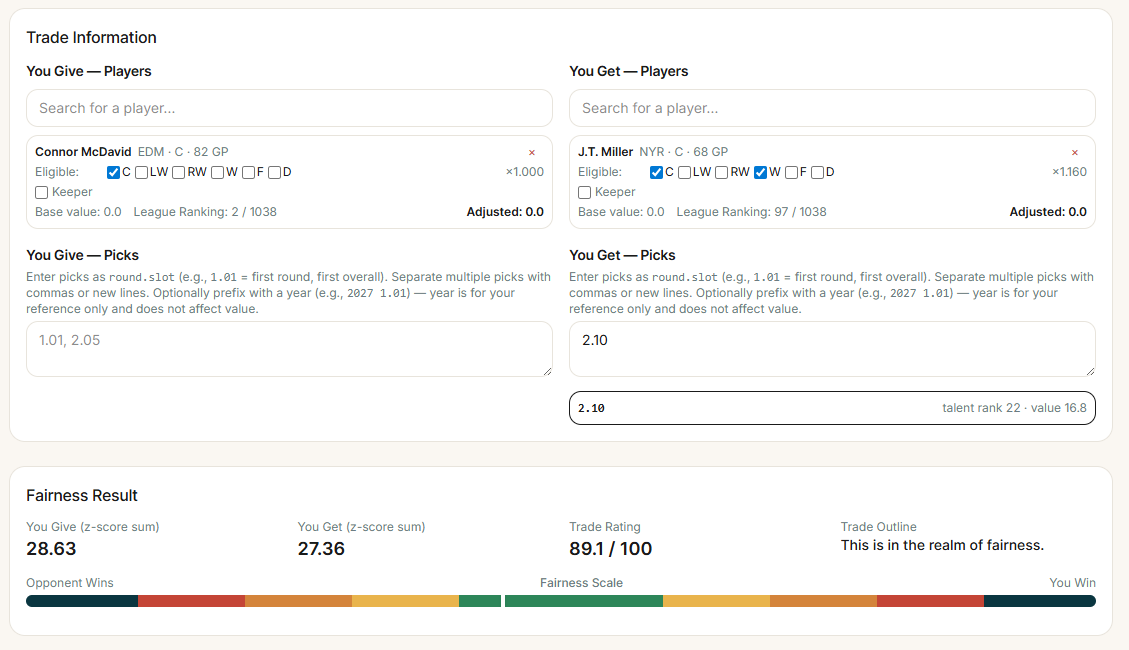
The trade builder is the core of the app. You will see two sides: Team A and Team B. Use the search bar on each side to add players, picks, or both. Type a player’s name and the app will autocomplete from the full pool. Click to add. The player card appears on that side of the trade, showing their projected fantasy value based on your league settings, their league rank, and any positional scarcity badges that apply.

Type a player’s name and the app will autocomplete from the full pool. Click to add. The player card appears on that side of the trade, showing their projected fantasy value based on your league settings, their league rank, and any positional scarcity badges that apply.
In NFL, you will see badges like “Elite RB” or “Scarce TE” when applicable. In MLB, closers get a yellow warning badge because saves are scarce but other closer contributions are minimal. In NHL, positional scarcity is calculated based on how hard each player’s slot is to fill in your specific roster.
For dynasty and keeper leagues, you can also add draft picks. Use the round-and-slot format (for example, 1.01 for first round first overall, or 2.07 for second round seventh overall). The app values picks based on the talent rank you would expect at that slot, with a keeper offset applied automatically. Once both sides have players or picks, the fairness verdict updates in real time.
Reading the Fairness Verdict
At the center of the trade builder you will see two numbers and a plain-language verdict.
The Trade Rating is on a 0 to 100 scale, with 100 being a perfectly fair trade. The Display Score visualizes that fairness on a colored bar centered at 50. The colors run from green in the middle (fair) to yellow, orange, red, and black at the extremes (very unfair, with the black zone reserved for trades the app flags as likely collusion).
The verdict gives you a one-line read. At the fair end, you will see phrases like “This is in the realm of fairness.” At the unfair end, the language gets blunt: “Horrific trade, don’t do this,” or “We won’t tell, but if they accept this, it’s probably collusion.”
The verdict also tells you which side wins and by how much. This is where the app earns its keep. You can see exactly why the trade is rated the way it is, and use that information to either accept, decline, or counter.
Reading the Fairness Verdict
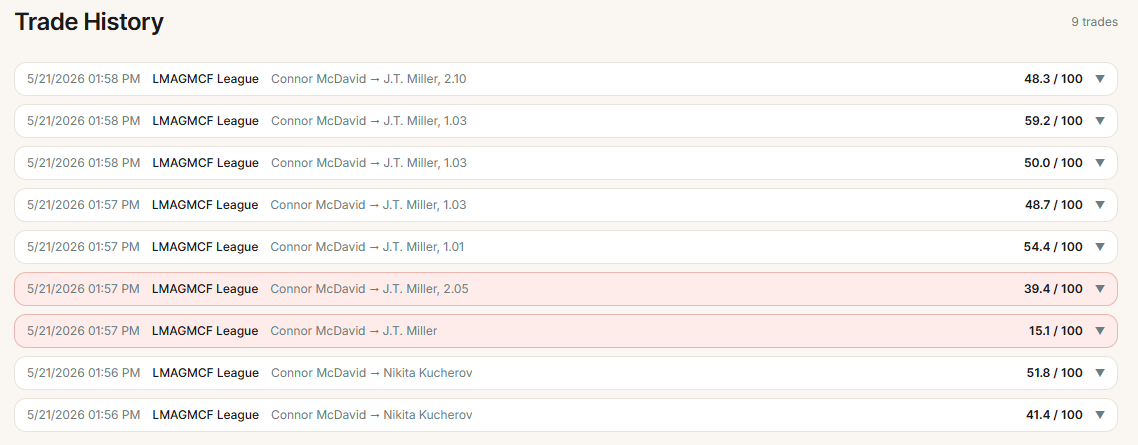
Every trade you evaluate is auto-saved to your trade history. Pro users get a read-only history. Pro Plus users can delete entries and filter history by league.
This is useful in two ways. First, you can revisit past trades and see how your decisions are tracking. Second, during active trade negotiations, you can build several versions of a trade and compare them side by side without losing any.
The Commissioner Tier: Setup and Workflow
The Commissioner tier is a different product from Pro or Pro Plus. It is a single annual license at $200 that gives your entire league (up to 14 seats, including the commissioner) full Pro Plus access. Everyone in the league works from the same valuation system.
The pitch is simple. $45 per year individually for Pro Plus, or $200 for the entire league, which works out to around $15 per manager. More importantly, every trade in your league is now evaluated by the same engine, so disputes about “but my tool said it was fair” disappear.
To get started, purchase the Commissioner tier from the pricing page. Once your purchase completes, you will see a new Commissioner panel in your account.
Inviting Managers to Your League
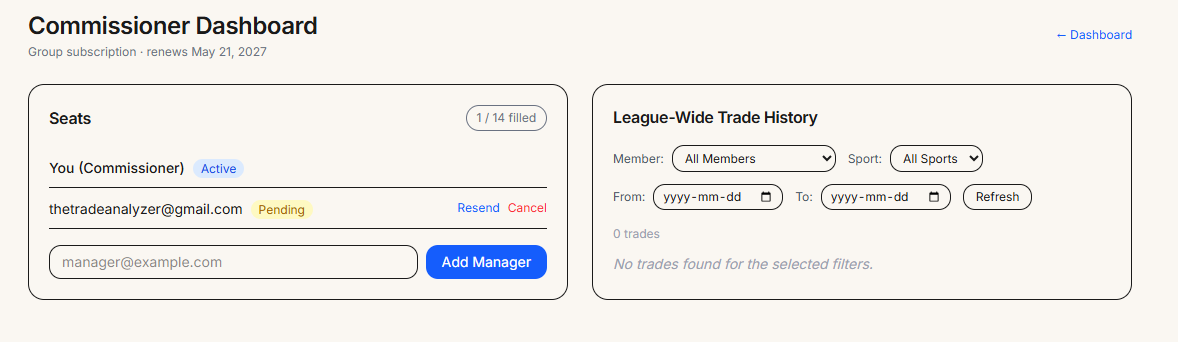
In the Commissioner panel, you will see 13 open seats waiting to be assigned. Each seat is filled by entering the email address of one of your managers.
Enter their email and click Send Invite. The manager receives an email with a link to claim their seat. When they click through and create or sign into their account, they are automatically upgraded to Pro Plus for as long as the Commissioner license is active.
You can remove and reassign seats at any time. If a manager leaves your league, free up their seat and invite the new manager in their place.
Each manager configures the league settings on their own end. They have full Pro Plus access, so they can save other leagues separately if they play in multiple. The Commissioner seat does not lock them into your league only.
Using the Commissioner Dashboard
The Commissioner Dashboard is the unique part of this tier. It gives you visibility into every trade evaluated by every manager in your league.
The dashboard shows a chronological list of every trade run through the analyzer by anyone holding a seat. Each entry shows the manager who ran the trade, both sides of the proposed deal, the fairness verdict, and the date.
You can filter by manager, by sport, and by date range.
This is genuinely useful for commissioners in two ways. First, when a trade gets vetoed or disputed, you can pull up the analyzer’s verdict and have an objective starting point for the conversation. Second, you can see who in your league is most active in the trade market and how their trades are landing.
The dashboard is read-only for trades evaluated by other managers. You cannot delete or modify their trade history. You can only view it.
Tips for Getting the Most Out of the App
A few things worth knowing.
First, configure your league before evaluating trades. A trade evaluated under the wrong settings is worse than no evaluation at all. Spend five minutes setting up your league once, and every trade after that is accurate.
Second, the keeper toggle matters more than people realize. If you are in a keeper league, turn it on. The valuation shifts noticeably for high-end players, and the shift is real because keeping a top player below market is genuine surplus value.
Third, in MLB, the format setting changes everything. If your league is points-based, do not leave the analyzer set to 5×5 roto. The values will be wildly off, especially for closers and base stealers.
Fourth, for dynasty and keeper leagues, add the picks to your trades. The app values them properly using the round-and-slot system. Leaving them out makes the trade look unbalanced, even though it actually is not.
Fifth, if you are a commissioner running an active league, the Commissioner Dashboard becomes more valuable the longer the season goes. By midseason, you will have a full picture of trade activity across your league, which makes managing trade disputes and identifying suspicious patterns much easier.
For pricing details on all tiers, head to thetradeanalyzer.com/pricing. To start using the app, go to app.thetradeanalyzer.com.